
Syncing Markdown Notes to NotebookLM Using Google Apps Script
After discovering NotebookLM last December, I started importing my notes to make them easier to search and review. While NotebookLM's RAG capabilities are powerful and offer many useful features, maintaining existing content can be quite inconvenient.
The biggest issue is the handling mechanism for duplicate uploads. Even if you upload a file with the same name, NotebookLM treats it as a brand-new source, resulting in both the old and new versions coexisting. For someone like me who constantly iterates on notes, having to delete the old source before uploading the new one every time is a huge hassle. Currently, there doesn't seem to be an official API for batch management, so I cannot automate this process via API.
Of course, if you don't care about the chat history within the notebook, you could delete the entire notebook, create a new one, and re-upload everything. However, since I migrated my notes from HackMD to GitHub Pages and started organizing them into folders, the level of difficulty has increased. I cannot select all notes at once; I have to click into subfolders layer by layer to select articles, while simultaneously manually excluding unnecessary files.
NotebookLM's Sync Mechanism and Pain Points
NotebookLM currently supports syncing from Google Drive for specific formats like Google Docs, Google Slides, PDFs, and Word (.docx) files. When a cloud file is updated, NotebookLM displays a sync prompt:
The downside is that you currently have to click into individual sources to trigger a sync; you cannot process them in batches from the list page, but it's the best we have for now.
How can I leverage NotebookLM's Drive sync mechanism to solve my problem? First, let's review the current bottlenecks:
- File Filtering: Although I can specify a local folder to sync with Google Drive, my notes are part of a VitePress site, which includes many non-note files (like configuration files, images, etc.).
- Format Support: My notes are all Markdown (
.md) files, but NotebookLM's Google Drive sync does not support reading.mdfiles directly. - Directory Structure Dilemma: Notes are organized in folders, requiring batch selection and upload, which is tedious.
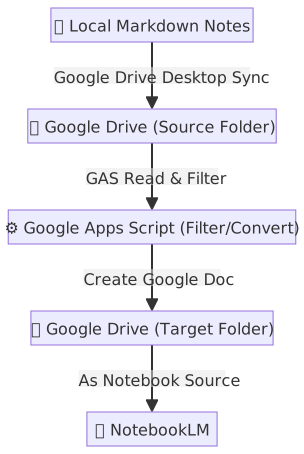
To solve these problems, I needed an "intermediary service." After discussing it with Gemini, it suggested Google Apps Script (GAS).
The solution architecture is as follows:
Google Apps Script Implementation
1. Create a Project
Go to script.google.com and click "New Project." You will see the following interface:
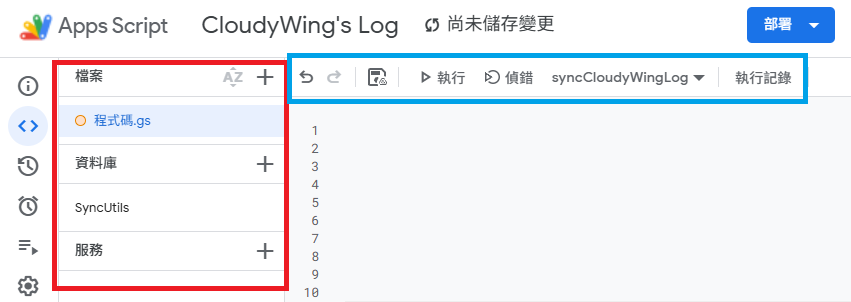
A brief explanation of the interface sections (as shown above):
- Red Box:
- Files: Manage
.gs(code) and.htmlfiles. - Libraries: Used to reference external libraries.
- Services: Used to connect to advanced Google APIs (not needed for this project).
- Files: Manage
- Blue Box: The standard code editor. In the image,
syncCloudyWingLogis the function list, where you can select and execute functions.
Google Apps Script is essentially JavaScript. Just paste the code from the two sections below and make the following minor adjustments to use it.
2. Configure Project Parameters
Paste the following code into Code.gs. You need to modify these variables:
TargetFolderId: The ID of the target folder where converted Google Docs will be stored (can be obtained from the folder's URL).SourceFolderId: The ID of the source Markdown folder.- Since Google Drive Desktop syncs to the "Computer" section, you can't get the ID directly from the URL like a standard Drive folder. You can use the
findCorrectFolderId()helper function below; changetargetFolderNameto your sync folder name, run it, and get the correct ID from the logs.
- Since Google Drive Desktop syncs to the "Computer" section, you can't get the ID directly from the URL like a standard Drive folder. You can use the
- If you place these two code blocks in the same project, change
SyncUtils.startSyncEngine(...)tostartSyncEngine(...).
In the first block, only syncCloudyWingLog() is an execution function; the others are temporary utilities.
function syncCloudyWingLog() {
  const sourceFolderId = 'Source Folder Id';
  const targetFolderId = 'Target Folder Id';

  // Set file whitelist (sync .md only)
  const whitelistFiles = [
    /\.md$/i
  ];
  // Set file blacklist
  const blacklistFiles = [
    /^index\.md$/i,
    /^about\.md$/i,
    /^tags\.md$/i
  ];

  const whitelistFolders = [];
  const blacklistFolders = [];

  // If calling directly in the same project, remove "SyncUtils."
  SyncUtils.startSyncEngine(
    sourceFolderId,
    targetFolderId,
    whitelistFiles,
    blacklistFiles,
    whitelistFolders,
    blacklistFolders
  );
}

// Helper function: Find the ID of a folder synced by Google Drive Desktop
function findCorrectFolderId() {
  const targetFolderName = 'docs';

  const folders = DriveApp.getFoldersByName(targetFolderName);

  Logger.log('Searching for folder named "' + targetFolderName + '"...');

  let found = false;

  while (folders.hasNext()) {
    const folder = folders.next();
    found = true;

    // Get parent folder name to verify location
    const parents = folder.getParents();
    let parentName = 'None (possibly root or special area)';
    if (parents.hasNext()) {
      parentName = parents.next().getName();
    }

    Logger.log('------------------------------------------------');
    Logger.log('📁 Folder Name: ' + folder.getName());
    Logger.log('🆔 ID (Copy this): ' + folder.getId());
    Logger.log('🏠 Located in (Parent): ' + parentName);
    Logger.log('🔗 URL: ' + folder.getUrl());
  }

  if (!found) {
    Logger.log('❌ Could not find any folder named "' + targetFolderName + '". Please check for case sensitivity.');
  }
}

// Helper function: Clean up ghost files created during testing
function killGhostFile() {
  var ghostId = '1Fd6GQzsZBvgmSeV23AP1PxKSQnL10aXDeRY98btPb60';

  try {
    var file = DriveApp.getFileById(ghostId);
    console.log('👻 Caught it! Ghost file name: ' + file.getName());
    console.log('📂 Location: ' + (file.getParents().hasNext() ? file.getParents().next().getName() : "None (Orphaned file)"));
    console.log('🗑️ In Trash: ' + file.isTrashed());

    file.setTrashed(true);
    console.log('✅ Successfully moved ghost file to trash!');

  } catch (e) {
    console.log('❌ ID not found, it might already be gone. Error: ' + e.message);
  }
}TIP
When you first run any function in the project (e.g., findCorrectFolderId or syncCloudyWingLog), Google will pop up an "Authorization Required" window.
This is because the script needs to scan your Google Drive folders, read Markdown file content, and create Google Docs. Click "Review Permissions" and select your Google account. If you see a "Google hasn't verified this app" warning, click "Advanced" and then "Go to... (unsafe)" to complete the authorization. Since this is a script you wrote yourself, it is safe to use.
3. Core Sync Logic
This part handles recursive folder scanning, Markdown reading, and the creation/update of Google Docs.
/**
 * Start the sync engine
 * @param {string} sourceId - Source folder ID
 * @param {string} targetId - Target folder ID
 * @param {Array<RegExp>} fileWhite - File whitelist
 * @param {Array<RegExp>} fileBlack - File blacklist
 * @param {Array<RegExp>} folderWhite - Folder whitelist
 * @param {Array<RegExp>} folderBlack - Folder blacklist
 */
function startSyncEngine(sourceId, targetId, fileWhite, fileBlack, folderWhite, folderBlack) {
  const sourceFolder = DriveApp.getFolderById(sourceId);
  const targetFolder = DriveApp.getFolderById(targetId);

  console.log('🚀 Starting sync... (Mode: Markdown -> Google Doc + Chunked Writing)');
  processFolderFlattened(sourceFolder, targetFolder, "", fileWhite, fileBlack, folderWhite, folderBlack);
}

/**
 * Recursively process folders and flatten the structure
 * @param {Folder} currentSource
 * @param {Folder} rootTarget
 * @param {string} prefix
 * @param {Array<RegExp>} fileWhite
 * @param {Array<RegExp>} fileBlack
 * @param {Array<RegExp>} folderWhite
 * @param {Array<RegExp>} folderBlack
 */
function processFolderFlattened(currentSource, rootTarget, prefix, fileWhite, fileBlack, folderWhite, folderBlack) {
  const files = currentSource.getFiles();
  while (files.hasNext()) {
    const file = files.next();
    const originalName = file.getName();

    if (isAllowed(originalName, fileWhite, fileBlack)) {
      let baseName = (prefix ? prefix + "_" : "") + originalName;
      const targetDocName = baseName.replace(/\.md$/i, "");

      try {
        syncFileToGoogleDoc(file, rootTarget, targetDocName);
      } catch (e) {
        console.error("❌ Failed to process file [" + targetDocName + "]: " + e.toString());
      }

      // Prevent API Rate Limiting
      Utilities.sleep(150);
    }
  }

  const subFolders = currentSource.getFolders();
  while (subFolders.hasNext()) {
    const subFolder = subFolders.next();
    const subName = subFolder.getName();

    if (isAllowed(subName, folderWhite, folderBlack)) {
      const nextPrefix = (prefix ? prefix + "_" : "") + subName;
      processFolderFlattened(subFolder, rootTarget, nextPrefix, fileWhite, fileBlack, folderWhite, folderBlack);
    }
  }
}

/**
 * Sync a single file to Google Doc (with retry mechanism)
 * @param {File} sourceFile
 * @param {Folder} targetFolder
 * @param {string} targetDocName
 */
function syncFileToGoogleDoc(sourceFile, targetFolder, targetDocName) {
  const maxRetries = 3;
  let attempt = 0;
  let success = false;

  while (attempt < maxRetries && !success) {
    try {
      attempt++;

      const existingFiles = targetFolder.getFilesByName(targetDocName);
      let targetDocFile = null;

      while (existingFiles.hasNext()) {
        const f = existingFiles.next();
        if (f.getMimeType() === MimeType.GOOGLE_DOCS) {
          targetDocFile = f;
          break;
        }
      }

      if (targetDocFile) {
        if (sourceFile.getLastUpdated() > targetDocFile.getLastUpdated()) {
          console.log('   🔄 [Update] ' + targetDocName + (attempt > 1 ? ` (Retry ${attempt})` : ""));
          updateDocContent(targetDocFile.getId(), sourceFile);
        }
      } else {
        console.log('   ➕ [New] ' + targetDocName + (attempt > 1 ? ` (Retry ${attempt})` : ""));
        createDocContent(targetFolder, targetDocName, sourceFile);
      }

      success = true;

    } catch (e) {
      if (attempt < maxRetries) {
        console.warn(`⚠️ Failed, retrying (${attempt}/${maxRetries}): ${targetDocName}`);
        Utilities.sleep(attempt * 3000);
      } else {
        throw new Error(`Failed after ${maxRetries} retries: ` + e.message);
      }
    }
  }
}

/**
 * Write long text content in chunks (Chunking Strategy)
 * @param {Body} docBody
 * @param {string} fullText
 */
function writeContentInChunks(docBody, fullText) {
  const CHUNK_SIZE = 20000;

  // Initialization: Clear and create an initial empty paragraph
  docBody.setText("");

  if (!fullText || fullText.length === 0) {
    return;
  }

  for (let i = 0; i < fullText.length; i += CHUNK_SIZE) {
    const chunk = fullText.substring(i, i + CHUNK_SIZE);

    // Must fetch the current last paragraph object to appendText
    const paragraphs = docBody.getParagraphs();
    const lastParagraph = paragraphs[paragraphs.length - 1];

    if (lastParagraph) {
      lastParagraph.appendText(chunk);
    } else {
      docBody.appendParagraph(chunk);
    }

    Utilities.sleep(150);
  }
}

/**
 * Update existing Google Doc content
 * @param {string} docId
 * @param {File} sourceFile
 */
function updateDocContent(docId, sourceFile) {
  const content = sourceFile.getBlob().getDataAsString();
  const doc = DocumentApp.openById(docId);
  const body = doc.getBody();

  // Keep File ID unchanged, update content in-place to maintain NotebookLM references/history
  writeContentInChunks(body, content);

  doc.saveAndClose();
}

/**
 * Create new Google Doc and write content
 * @param {Folder} targetFolder
 * @param {string} docName
 * @param {File} sourceFile
 */
function createDocContent(targetFolder, docName, sourceFile) {
  const content = sourceFile.getBlob().getDataAsString();
  const doc = DocumentApp.create(docName);
  const body = doc.getBody();

  writeContentInChunks(body, content);

  doc.saveAndClose();

  const docFile = DriveApp.getFileById(doc.getId());
  docFile.moveTo(targetFolder);
}

/**
 * Check if name matches whitelist/blacklist rules
 * @param {string} name
 * @param {Array<RegExp>} whitelist
 * @param {Array<RegExp>} blacklist
 * @returns {boolean}
 */
function isAllowed(name, whitelist, blacklist) {
  if (blacklist && blacklist.some(pattern => pattern.test(name))) return false;
  if (!whitelist || whitelist.length === 0) return true;
  return whitelist.some(pattern => pattern.test(name));
}4. Deploy the Project
If you have multiple sets of notes to sync, as an engineer, you wouldn't copy-paste code into every project. I maintain the "Core Sync Logic (SyncUtils)" as an independent project and call it via reference. Other projects just need to adjust the whitelist/blacklist and call startSyncEngine().
- In the core logic project, click "Deploy" -> "New Deployment" in the top right.
- Select "Library" as the type.
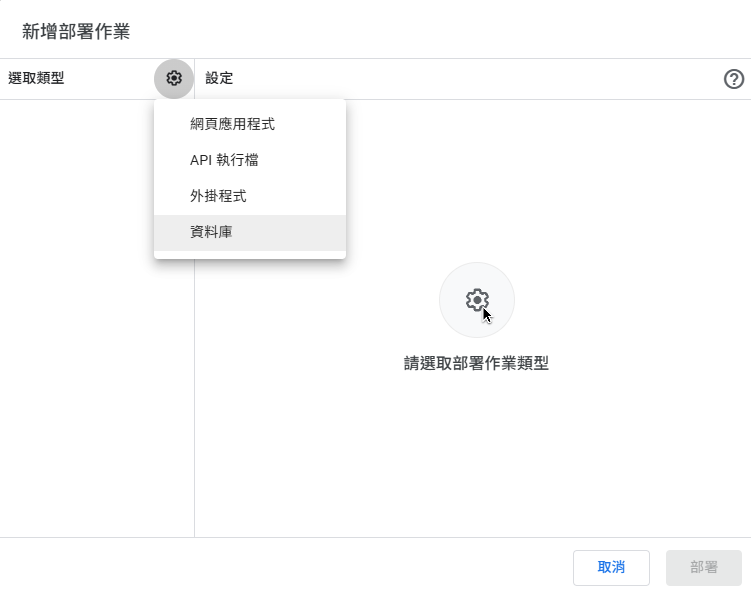
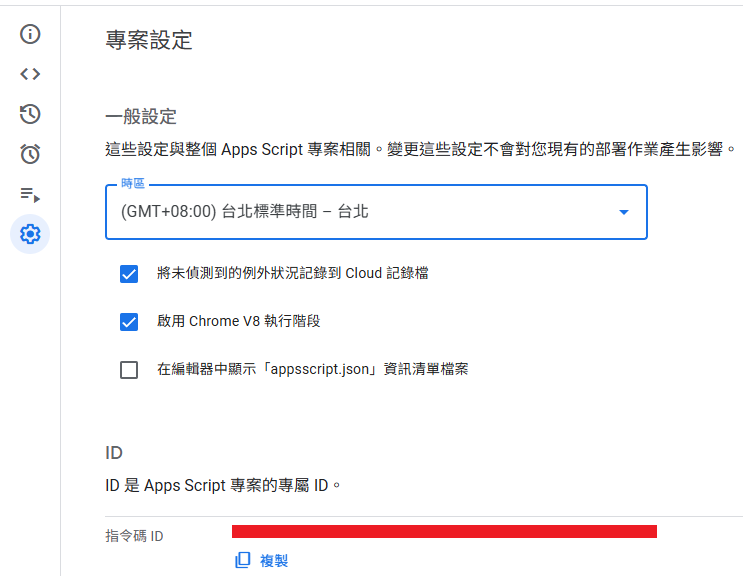
- Enter a description and click "Deploy." You'll see a "Deployment ID," but that's for web apps; we don't need it.
- We need the "Script ID" shown below. Copy it and return to your original project.
- Click the
+next to "Libraries" on the left and paste the ID you just copied.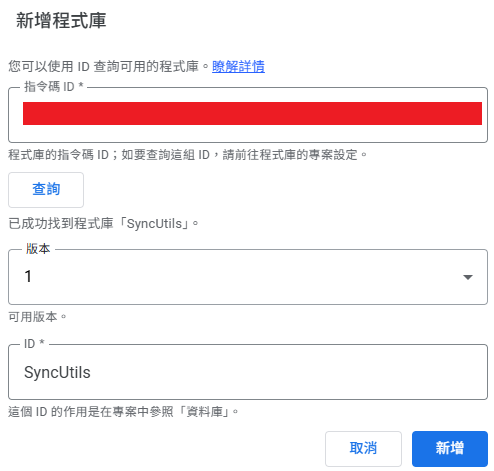
Configuration Tips:
- Version: The dropdown shows "1" and "Head" (latest code snapshot).
- Like Git, every time you save the library project, it creates a commit. "Head" points to the latest commit. Deploying creates a version tag (e.g., Version 1).
- "Head" is suitable for development: when the library is still being adjusted and you don't want to redeploy every time you test. Once stable, publish a formal version.
- Identifier: The variable name used to call the library in your code.
- Importance: The
SyncUtilsinSyncUtils.startSyncEngine(...)corresponds to this setting. If you change it here, you must update your code. - Decoupling Benefit: The default ID is the project name, but they are decoupled. Even if you rename the remote library project to
SyncUtils_v2_Backup, as long as you keep the Identifier asSyncUtilshere, your code remains unchanged and works perfectly.
- Importance: The
5. Set Up Automated Triggers
Finally, set up a schedule to run the sync in the background.
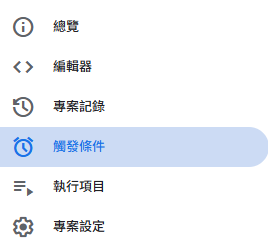
Click the alarm clock icon (Triggers) on the left:
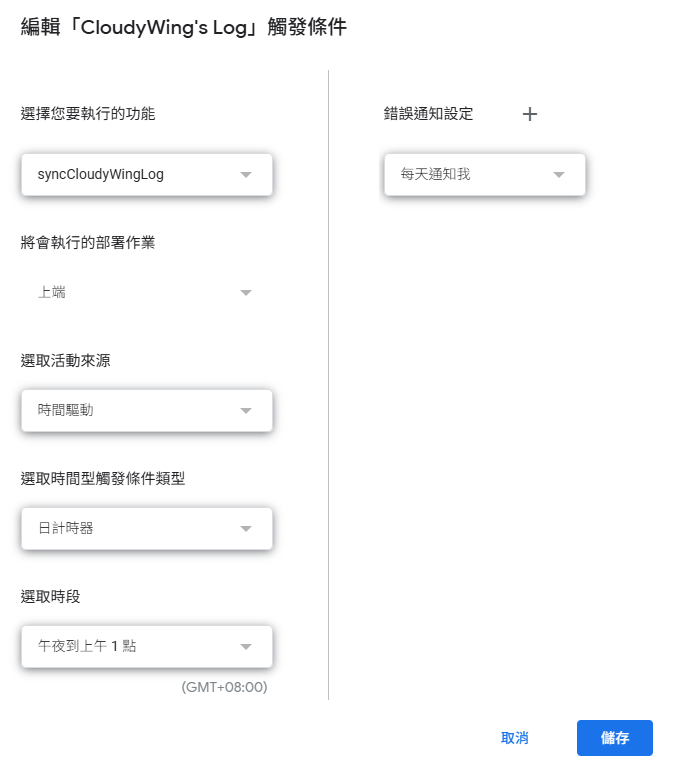
Add a trigger, select syncCloudyWingLog (or your main function), set the event source to "Time-driven," and set the frequency as needed (e.g., hourly).
Honestly, this workflow is "barely acceptable," but it's the best I can think of for now. I can only hope Google eventually optimizes the NotebookLM file management interface.
Other Failed Attempts
This concludes the main article. Below is a record of some attempts made during the technical selection process.
Before deciding to return to NotebookLM, I tried setting up a local AI knowledge base, but it wasn't as simple as I imagined.
AI Server Selection
LM Studio
- Pros: Very user-friendly UI, perfect for beginners or those just wanting to try models. You can search and download models from HuggingFace directly in the interface.
- Reason for Abandonment: Likely due to the polished UI or being built on Electron, it consumes significant resources. Plus, I couldn't find a setting for auto-startup, so I decided to give it up.
TIP
We usually go to HuggingFace to download models. Besides official releases, there are many versions adjusted by the community. These adjustments might be Abliterated (removing refusal mechanisms), Uncensored, or fine-tuned for specific purposes.
- Uncensored: Usually trained without alignment data, which might produce inappropriate responses.
- Abliterated: A common open-source term for modifying model weights (e.g., removing vectors responsible for refusing requests) to "forget" refusal mechanisms, allowing it to answer sensitive questions. This is generally recommended for jailbreaking.
Ollama
- Pros: Low resource consumption, supports auto-startup and automatic VRAM allocation, suitable for advanced users who need long-term operation or API integration.
- Cons: Relies on CLI commands, which is less friendly for users not used to the terminal. However, most servers only require interaction during setup, so it's fine.
TIP
I previously had a misconception that Ollama could only download models from the Ollama platform. I thought I had to download GGUF files and import them using ModelFile. In reality, support for HuggingFace downloads has been available since around October 16, 2024. For details, see You can now run directly with Ollama and Use Ollama with any GGUF Model on Hugging Face Hub.
KoboldCpp
- Pros: Single executable (portable), no installation required; excellent Context Shifting (suitable for long text/context switching).
- Cons: Requires manual parameter tuning; slightly higher learning curve.
I chose this later because I needed stronger context capabilities for other requirements.
Knowledge Platforms
Open Web UI
I set it up with Docker and deleted it after half an hour. It's powerful, but I feel it's more suitable for corporate knowledge platforms where you can manage accounts and groups, which I don't need.
AnythingLLM
Supports multi-user mode and single-user mode, supports AI Agents. Functionally, it fits my needs better.
However, while using it, I realized my understanding of their operating mechanism was wrong. I thought I could just point it to my note folder, but it requires an "import" action to create a Vector Indexing. This led to several issues:
- Slow Import: Default import takes time. I solved this by downloading the
bge-m3model. - Parameter Sensitivity: Import requires setting
Chunk SizeandChunk Overlap, which affect how data is processed. Finding the best settings takes time, and changing them requires re-importing everything. If settings aren't tuned well, what happens? A simple comparison: I have two notes,Common Packages - Visual StudioandCommon Packages - Visual Studio Code. In NotebookLM, if I ask for Visual Studio packages, it gives the correct list. In AnythingLLM, even if I specify "Visual Studio" and "not Visual Studio Code," it often returns Visual Studio Code content or incomplete/irrelevant notes.
TIP
When importing notes into a vector database, the system cannot process an entire article at once; it must be split into small pieces (Chunks).
- Chunk Size: The size of each block. Too large might include noise; too small might break semantics.
- Chunk Overlap: The overlap between blocks. Ensures context near the split point is preserved, preventing sentences from being cut off.
These need to be tuned based on the average length and type of your notes (code vs. general text) to achieve optimal search results.
Beyond "finding data," the "brain" that answers questions is also crucial.
Even if the data is found, if the backend AI model is weak, the answer will be poor.
For example, I often get frustrated with Gemini Flash's answers. Models with reasoning capabilities (like Gemini Flash Thinking) are much better. I once tried DeepSeek-R1-Distill-Qwen-14B locally, and I saw it spend time on Chain of Thought before answering. I realized Flash still has its place; it's more suitable for this scenario than Reasoning Models.
Also, if you want to customize Prompts without explicitly instructing the model to refer to the provided context, the model might ignore the hidden context and answer using its own training knowledge.
This doesn't mean Open Web UI and AnythingLLM are bad. It's just that the former has too many features for me, and the latter requires too much time to tune or research plugins, which is too costly. Plus, if I want to mount different models for different services, my VRAM isn't enough. Weighing the options, I'd rather spend time on other AI tools, so I ultimately returned to NotebookLM.
Author's Postscript: The Unsaved Draft Tragedy
Because I previously used Antigravity, which could read unsaved files, I didn't pay attention to saving.
This time, after finishing the draft, I asked Antigravity to proofread and update the file title. I saw a new tab appear and closed the old one. Tragedy struck. Antigravity had only read the unsaved content (about 1/3 of the full text) and "optimized" it based on that, resulting in a broken article. It couldn't restore the original version.
Ultimately, I had to recover 1/3 of the content from history and rewrite the remaining 2/3, taking about 3 hours.
This was my own operational error, a result of sloppy habits and lack of basic backup precautions.
It's 3:30 AM as I write this. My keyboard suddenly failed, and after rebooting, the internet disconnected... It seems the universe is telling me to go to sleep. orz
Changelog
- 2026-01-27 Initial document created.